Skip to content

Mstoic

  • Home
  • Start Here!
  • Best Deals
  • Facebook Tricks
  • Privacy
  • Resources
  • TOC
  • Tools
    • Web Tools
      • Stop Watch
      • QR Code Generator
      • Adsense Code Converter
      • Blogger Sitemap Generator
      • Difference Between Two Texts
      • Vacation Checklist
      • Twitter Symbols
      • Count Down
    • Investment
      • SIP Calculator
      • Power of Compounding
      • PPF Calculator
      • FD Calculator
  • About Us

Speed Up Windows 10 Startup

Editorial Team | November 15, 2015November 17, 2015 | Tricks, Windows 10 |

Windows 10 is rolling out to more and more devices everyday, and Microsoft is updating its latest Windows faster than ever, making it better for everyone.

Windows 10 is faster than all its predecessors, but slowly and slowly it starts to take more time while booting up. It’s not an issue with the operating system, but it’s the applications that you install which slow it down. Most applications start when you turn on your computer, which is done to reduce the time they take while starting.

Related Articles

  • 12 Ways To Speed Up Windows 7 And Improve System Performance
  • Changing Windows Installation Date Using Registry Editor
  • Hide Drives In Windows Using Command Prompt
  • How To Change Processor Details In Windows
  • Change Windows 7 Logon Screen Using Registry Editor

But most of these apps remain unused in most of the sessions, so why not turn them off? Windows 10 offers an easy solution to this too. Just follow these simple steps to fasten booting up of Windows 10.

Disable Startup Items in Windows 10

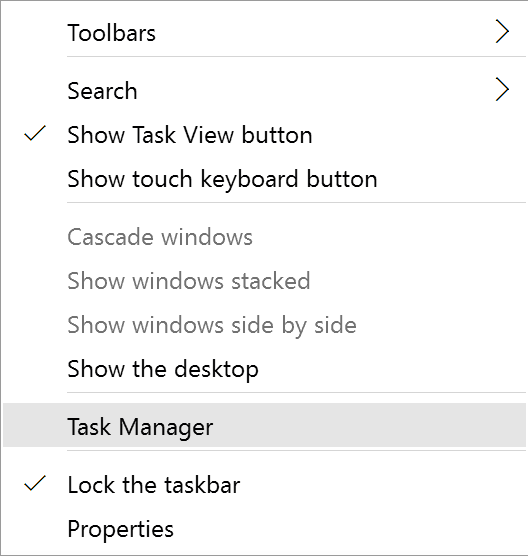
  1. Open Task Manager. You can do this by right-clicking on task manager and selecting Task Manager. Alternatively, you can press the key combination Ctrl + Shift + Escape.
  2. Open task manager from the taskbar in Windows 10
    Open task manager from the taskbar in Windows 10
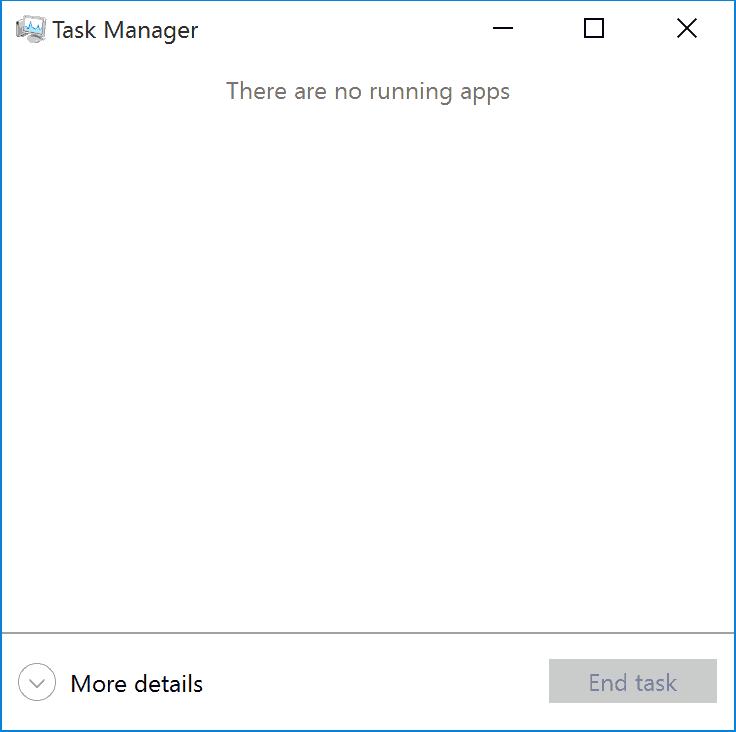
  3. Click on More details if you see this kind of screen. Else skip this step.
  4. Task-Manager-Windows-10
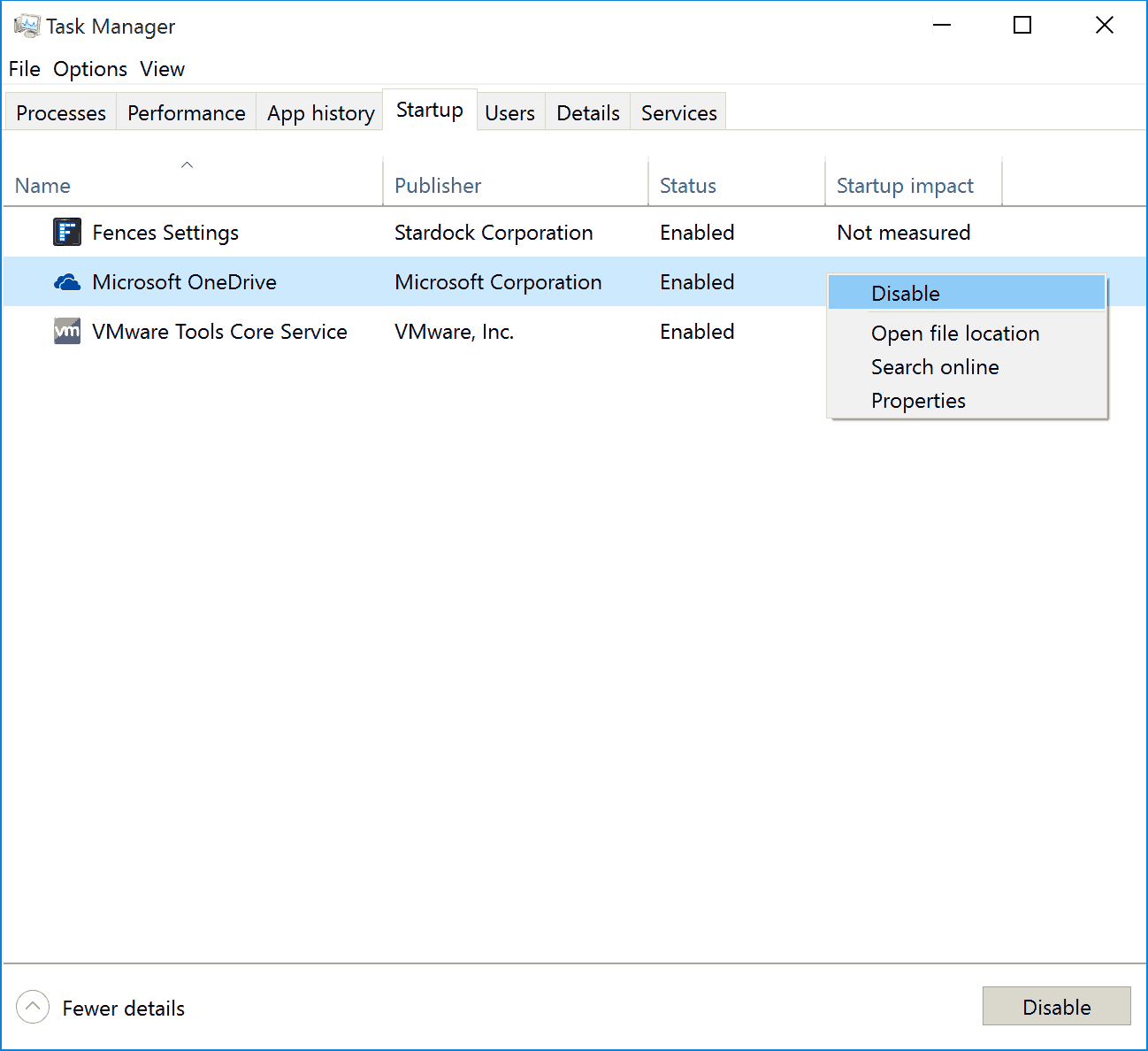
  5. Go to the Startup tab, and disable the apps you don’t want to load every time you start your computer. I am running Windows 10 in virtual mode and have no apps installed. You will likely find many apps here, based on how much apps you have installed.
  6. Disable the applications you don't use often from this list.
    Disable the applications you don’t use often from this list.
Previous Post

Get Bitdefender Antivirus For Mac 2016 With 6 Months Serial Key

by Editorial Team

Next Post

MacX DVD Ripper Pro Free Full Version Giveaway

by Editorial Team

Tags
  • Disable Startup Items in Windows 10
  • Speed up Windows
Recommended Next
gmail Delete SPAM Emails From Gmail Automatically

Your Comment Cancel reply

Follow Us

Like us Follow us Follow us

Categories

  • Tricks (93)
  • Facebook (83)
  • Tips (76)
  • Windows (67)
  • Wordpress (39)
  • Android (38)
  • Internet (33)
  • Antivirus (30)
  • How To (29)
  • Webmasters (25)
  • Customization (25)
  • Downloads (21)
  • Utilities (21)
  • Gmail (20)
  • Windows 7 (19)

Related Articles

  • Buy .com Domains At $5 From Godaddy
  • Get Your Facebook Timeline Business Cards Free From Moo.com
  • How To Get Spotify Premium For Free For 60 Days
  • HostGator Hosting at 44.44 Percent OFF – Pirate Day Special
  • Get 75 Percent Off On HostGator Hosting With Any Plan