Skip to content

Mstoic

  • Home
  • Start Here!
  • Best Deals
  • Facebook Tricks
  • Privacy
  • Resources
  • TOC
  • Tools
    • Web Tools
      • Stop Watch
      • QR Code Generator
      • Adsense Code Converter
      • Blogger Sitemap Generator
      • Difference Between Two Texts
      • Vacation Checklist
      • Twitter Symbols
      • Count Down
    • Investment
      • SIP Calculator
      • Power of Compounding
      • PPF Calculator
      • FD Calculator
  • About Us

Change Start Menu Button In Windows 7

Editorial Team | November 20, 2013November 20, 2013 | Customization, Tricks, Windows 7 |

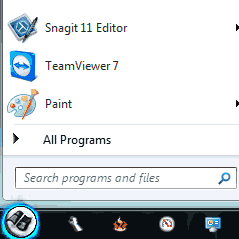
Windows 7 Start Orb Changer is an application that allows you to change the start menu button in Windows 7. You can change all the three aspects of the start button, the button when the start menu is closed, the button when you mouse over the start button, and the button when the start menu is active.

Related Articles

  • Revealing Windows Hidden “Send To” Menu and Adding Items to it
  • 12 Ways To Speed Up Windows 7 And Improve System Performance
  • How To Change Processor Details In Windows
  • Change Logon Screen For Windows 7
  • Hide Drives In Windows Using Command Prompt

The application lets you change the Start menu icon with just some simple clicks. You can use BMP or PNG files for the start menu icons. If you have the icons in some other format, you can easily convert them with RIOT.
Change-Windows-7-Start-Button

The application can also add shortcuts in the context menu of BMP and PNG files, which will make it easy to change the Start menu icon in Windows 7.

The program contains a free set of start menu icons. You can download more from the internet or design your own. You can also download Mega Orb Pack of 150+ start menu icons from DevianART.

How To Change The Start Menu Icon With Windows 7 Start Orb Changer

  1. Download the application. It is a ZIP file so extract it.
  2. Change-Start-Button-Windows-7
  3. Now run the executable file and click the “Change” button.
  4. NOTE Make sure you save all your opened documents before proceeding further.

  5. Now select your desired image with the icons. The icons will be applied and your explorer will be restarted. You will also receive a success message from the application.
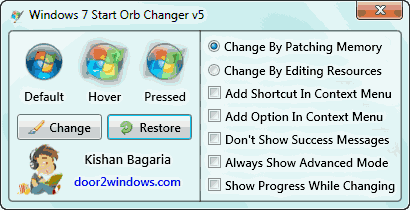
You can restore the old Start Menu icon using the Restore button. Make sure that you restore the old icons before trying other icons. This is to make sure that the original start menu icons are never overwritten.
Previous Post

Change Windows 7 Logon Screen Using Registry Editor

by Editorial Team

Next Post

Mastering Blur in Photoshop CS6

by Richa Mehra

Tags
  • Change Start Button In Windows 7
  • Change Start Button Windows 7
  • Change Windows 7 Start Button
Recommended Next
Ninite – Install And Update Multiple Applications With Just a Single Click

Your Comment Cancel reply

Follow Us

Like us Follow us Follow us

Categories

  • Tricks (93)
  • Facebook (83)
  • Tips (76)
  • Windows (67)
  • Wordpress (39)
  • Android (38)
  • Internet (33)
  • Antivirus (30)
  • How To (29)
  • Webmasters (25)
  • Customization (25)
  • Downloads (21)
  • Utilities (21)
  • Gmail (20)
  • Windows 7 (19)

Related Articles

  • Buy .com Domains At $5 From Godaddy
  • Get Your Facebook Timeline Business Cards Free From Moo.com
  • How To Get Spotify Premium For Free For 60 Days
  • HostGator Hosting at 44.44 Percent OFF – Pirate Day Special
  • Get 75 Percent Off On HostGator Hosting With Any Plan